🚀 Experience the new and improved APIVoid! Check out what's new
BROWSER EXTENSION
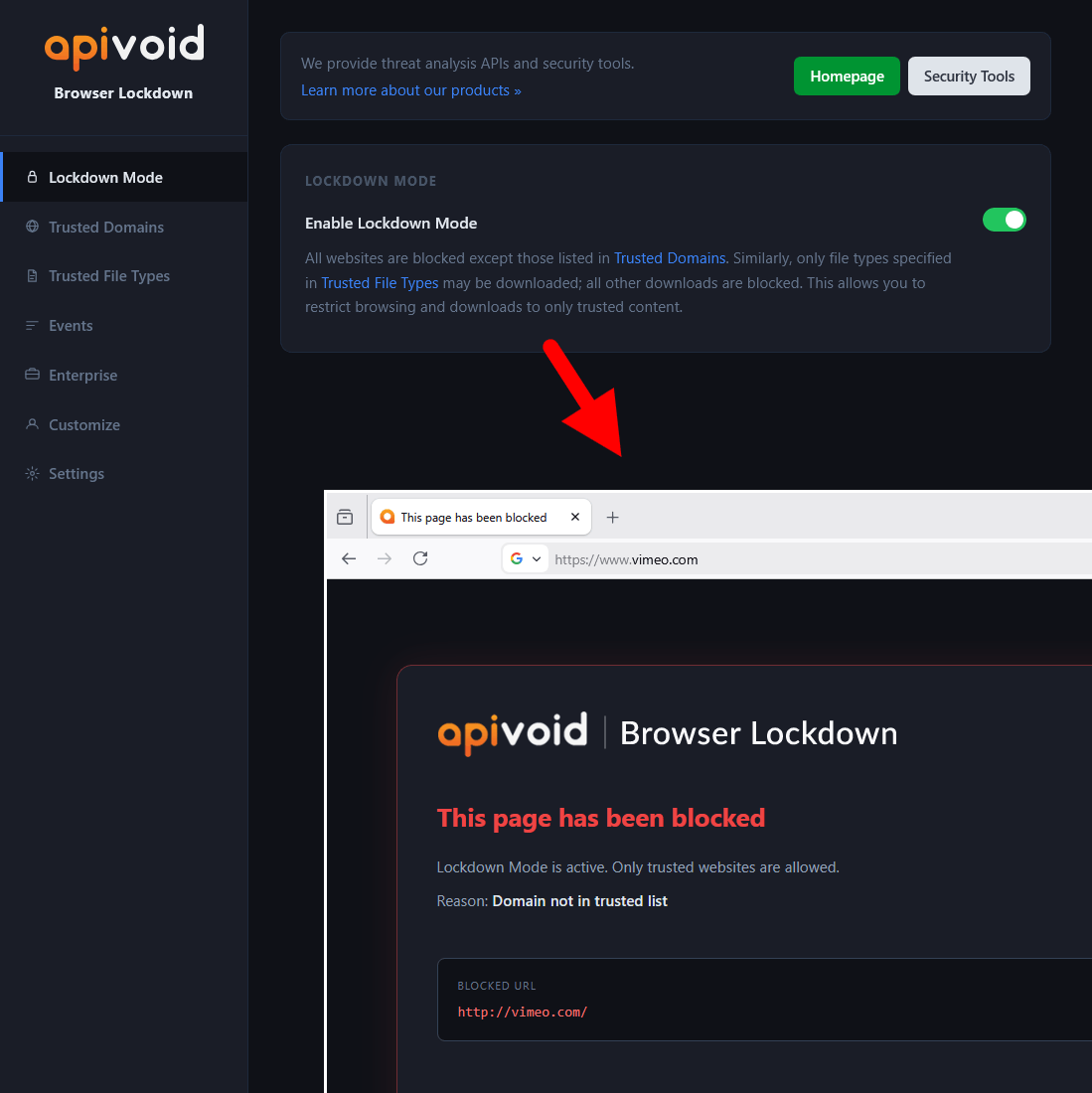
APIVoid Browser Lockdown puts you in full control of what can be accessed in your browser. Enable Lockdown Mode and every website is blocked, except the ones you explicitly trust. Perfect for managed devices, kiosks, schools, and enterprise environments.
Allow-Only Browsing
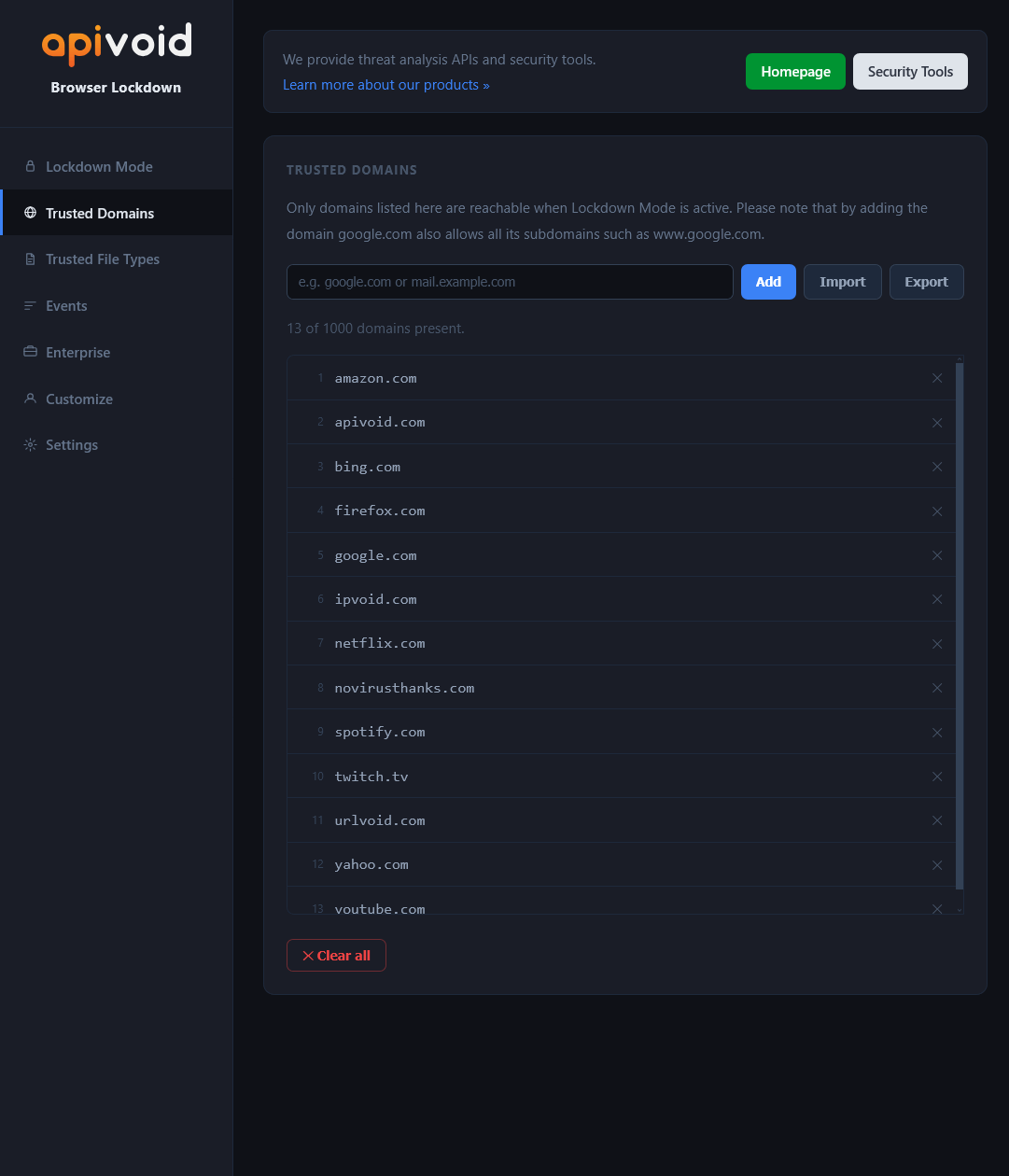
APIVoid Browser Lockdown works in reverse of a traditional blocklist. When Lockdown Mode is active, every website is denied by default. Only domains you have explicitly added to your Trusted Domains list are reachable, giving you precise control over browsing.
Add any domain to your allowlist and all its subdomains are automatically permitted. Removing a domain instantly blocks it again.
Control which file types can be downloaded. All other file downloads are blocked unless the extension is explicitly allowed.
Blocked attempts redirect to a clear warning page showing exactly which URL was blocked and why, with options to proceed or go back.
Manage large domain lists efficiently by importing and exporting plain text files, making bulk configuration quick and portable.
Enterprise Ready
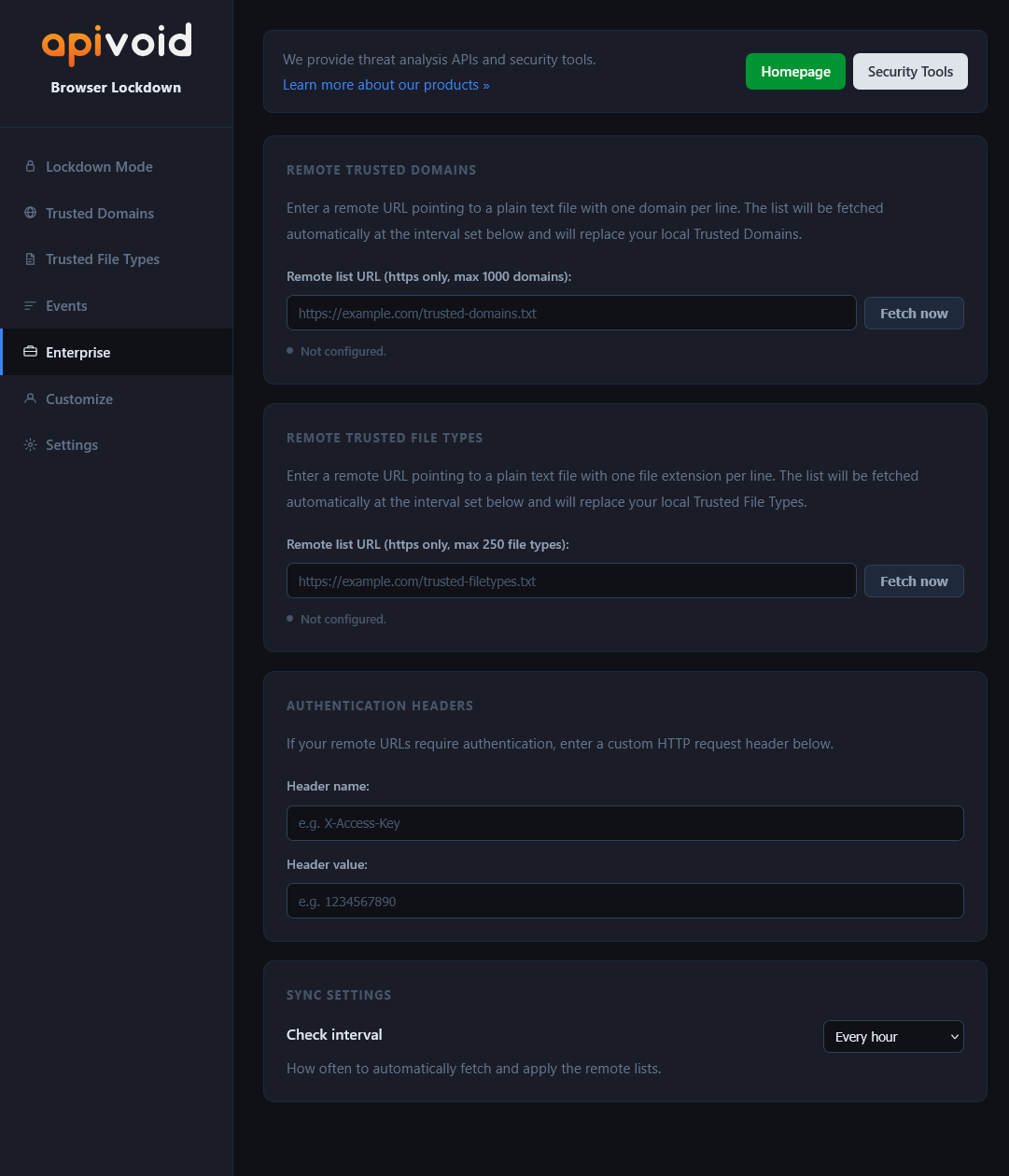
APIVoid Browser Lockdown includes built-in Enterprise sync. Point each browser to a remote HTTPS URL hosting your trusted domain list and every browser will automatically fetch and apply updates at your chosen interval; no manual reconfiguration needed.
Host a plain text file on any HTTPS server. All connected browsers will fetch and apply it automatically on your chosen schedule.
Protect your remote list with a custom HTTP header and secret key, ensuring only authorized browsers can fetch the list.
Choose how often browsers check for updates (every 15 minutes, hourly, every 6 hours, or once a day) to suit your environment.
Export a full JSON backup of all settings, trusted domains, and trusted file types. Restore to any browser in seconds.
BROWSER LOCKDOWN FAQ
Find clear answers about how Lockdown Mode works, how to manage your trusted domains, and how to get the most out of APIVoid Browser Lockdown.
When Lockdown Mode is active, every website navigation is blocked by default. Only domains you have added to your Trusted Domains list are allowed through. Any attempt to visit a non-trusted website is immediately redirected to a warning page that shows the blocked URL and the reason it was blocked. File downloads are also blocked unless the file type is listed in your Trusted File Types.
Yes. Adding a domain like google.com automatically allows all of its subdomains, including for example accounts.google.com, mail.google.com, drive.google.com, and any others. This means you only need to add the root domain once to cover the entire service. If you want to restrict access to only one specific subdomain, add that subdomain directly instead of the root domain.
Yes. On the warning page shown when a website is blocked, there are two bypass options: "Add to trusted & open" which permanently adds the domain to your trusted list and navigates you there, and "Proceed anyway" which allows you to visit the page for that session only without saving it to your list. Both buttons can be hidden via the Settings tab to prevent bypassing blocks on managed devices.
In the Enterprise tab of the settings, you can enter an HTTPS URL pointing to a plain text file with one domain per line. The extension will automatically fetch that file at your chosen interval (every 15 minutes, hourly, every 6 hours, or daily) and replace the local trusted domains list with the remote one. This allows an administrator to control the trusted list for all browsers in an organization simply by editing one remote file. The same mechanism is available for trusted file types.
Yes. In the Authentication Headers section of the Enterprise tab, you can configure a custom HTTP request header name and value, for example, X-Access-Key with a secret token. This header is sent with every fetch request (HTTP GET), allowing your server to verify that the request is coming from an authorized browser and reject any other unauthorized access to the list.
No. All blocking logic runs entirely inside your browser. No URLs you visit, no blocked URLs, and no personal data are ever sent anywhere. The only outbound connections the extension makes are the optional Enterprise remote list fetches that you configure yourself, which go to the HTTPS URL you provide.
Yes. The Customize tab in the settings lets you replace the default APIVoid extension logo on the warning page with your own. You can provide a custom image URL with an optional width, or display a custom text string such as your company name. This is useful for organizations that want the blocked page to reflect their own branding rather than the default appearance.
Enable Lockdown Mode from the extension settings and then add the websites you want to allow to your Trusted Domains list. Once Lockdown Mode is active, every website that is not on your list is automatically blocked and redirected to a warning page. Adding a domain like google.com also allows all its subdomains such as mail.google.com and drive.google.com, so you only need to add the root domain once. You can add domains one by one, import a plain text file with one domain per line, or use the Enterprise remote list feature to manage the allowed list centrally across multiple browsers.
Yes. The Settings tab includes a Backup & Restore section where you can export all your settings — including trusted domains, trusted file types, enterprise sync URLs, and customization options — to a single JSON file. You can import this file on any other browser (such as a Firefox or Chrome browser) to instantly replicate your configuration. If the backup includes enterprise remote URLs, the extension will automatically fetch and apply those lists immediately after import and then at your specified interval.
Create your account, activate your free trial and make your first API call. No credit card and no commitment required.
Get started now