🚀 Experience the new and improved APIVoid! Check out what's new
BROWSER EXTENSION
APIVoid Full Page Capture is an easy-to-use browser extension that lets you instantly capture any webpage with a single click. Take a visible area snapshot, a pixel-perfect full page screenshot, or drag to select any region. They'll be saved to your Downloads folder as a PNG file.
Automate screenshots with Website Screenshot API
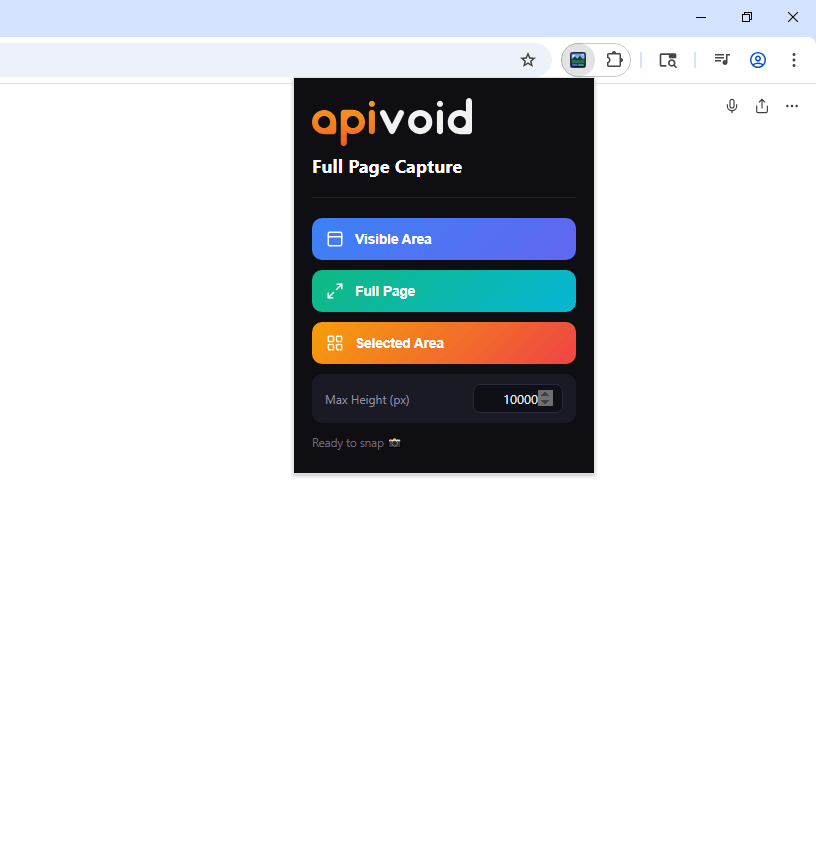
Full Page Capture
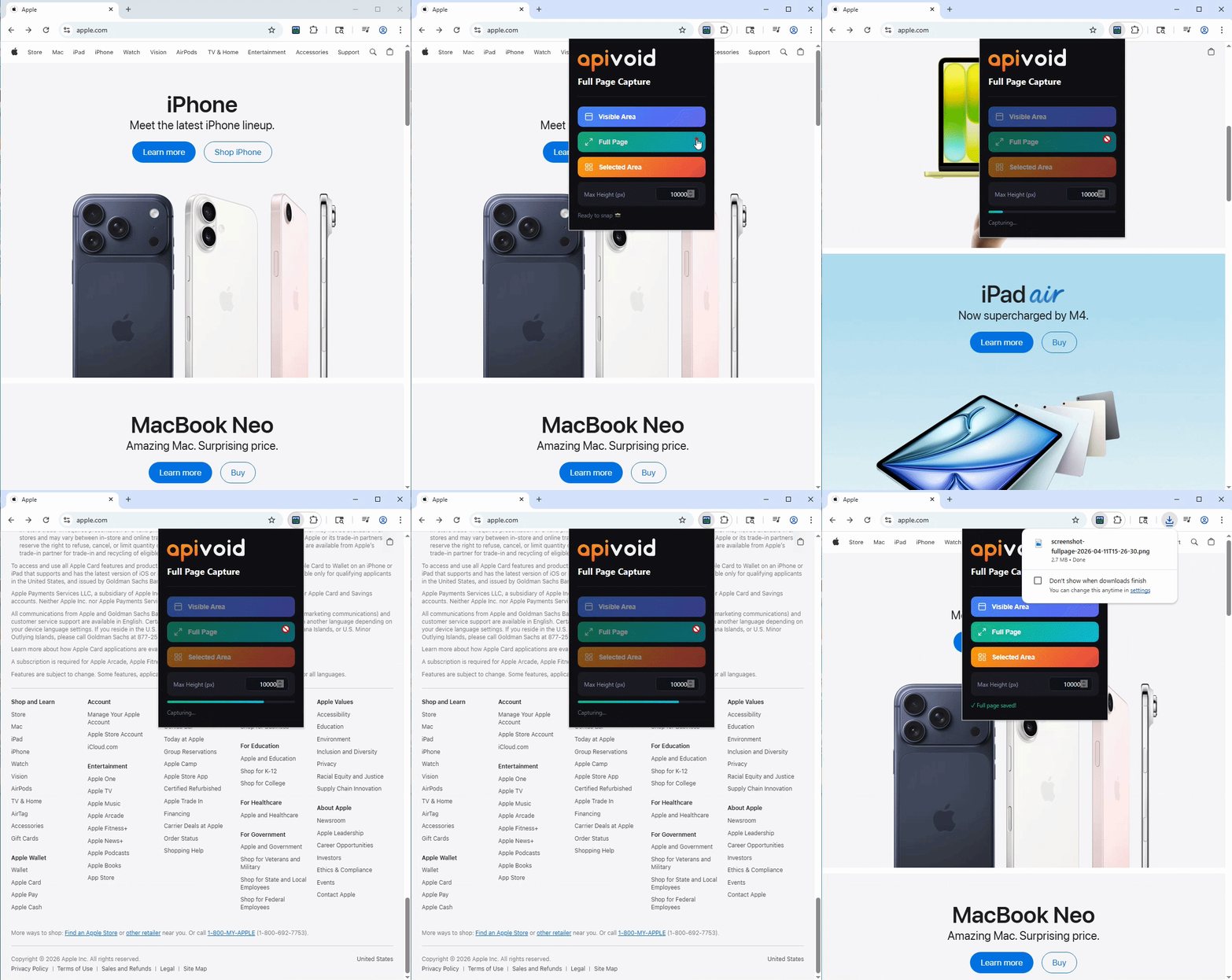
Most screenshot extensions only capture what is visible on screen, missing content hidden below the fold. APIVoid Full Page Capture enhances your browser by making it easy to capture screenshots of web pages. Simply install the extension on Chrome or Firefox, visit any page, click the extension icon, and start taking screenshots.
The extension simulates a mouse scroll and attempts to wait for lazy-content to load before taking the full page screenshot.
Taking a partial or full-page screenshot in your browser should be quick and easy. We've made it simpler than ever.
Set a pixel cap on full page height to avoid runaway captures on infinite-scroll pages. The limit is saved across browser sessions.
The extension supports most web pages. However, on animation-heavy pages, some elements may appear differently (e.g., repeated).
Three Capture Modes
Different tasks call for different capture modes. Whether you want a quick snapshot of the current screen, a complete page export for review, or a precise crop of a specific element, APIVoid Full Page Capture covers all three with a dedicated button for each.
Captures exactly what is currently visible in your web browser window, ideal for quick snapshots without any need to scroll down.
Scrolls the entire page from top to bottom and creates a complete web page screenshot PNG image, regardless of page length.
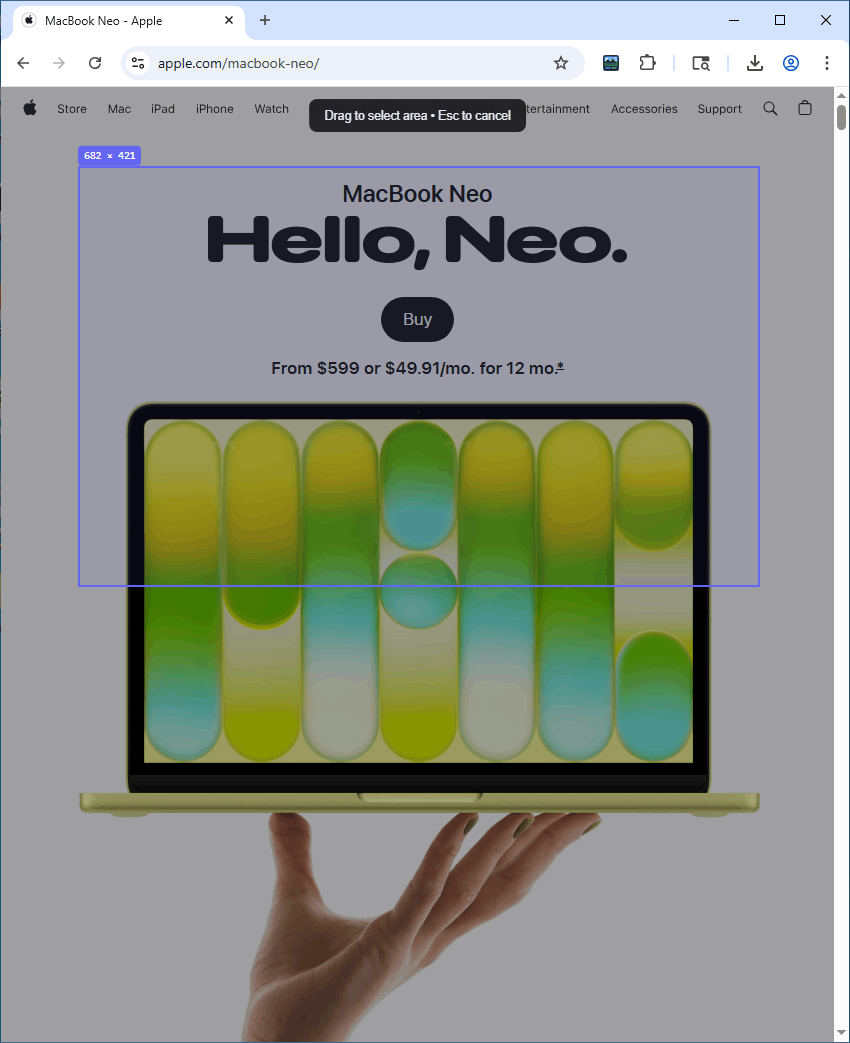
Overlays a crosshair on the page so you can drag a rectangle around any element or region and capture only that portion.
Every capture is saved automatically as a timestamped PNG file directly to your browser's Downloads folder, no extra steps are required.
SCREENSHOT EXTENSION FAQ
Find clear answers about how each capture mode works, what kinds of pages are supported, and how to get the best results with APIVoid Full Page Capture.
Clicking Selected Area creates an "overlay" of a semi-transparent crosshair on the current page. Click and drag to draw a rectangle around any element or region you want to capture, then release the mouse button. The extension immediately crops that exact area from the visible page and saves it as a PNG file. Press ESC at any time to cancel the selection without taking a screenshot.
Visible Area captures only the portion of the page currently shown in your browser window (what you can see without scrolling). Full Page capture automatically scrolls the entire page from top to bottom and then creates a full page screenshot PNG file. Use Visible Area for quick snapshots and Full Page when you need the complete content of a long webpage in a single file.
This can happen on pages that use lazy loading, heavy CSS animations, or custom scroll libraries. The extension performs various actions automatically to try to load the content for each page section. If you still see issues on a specific page, the content may be loading slower than usual.
Yes. The extension captures exactly what is visible on the page, so any cookie banners, chat widgets, popups, or modal windows will appear in the final screenshot. For best and clean results, we recommend closing any overlays and popups before taking a screenshot.
All screenshots are saved automatically as PNG files in your browser's default Downloads folder. Each file is named with the capture mode and a timestamp; for example, screenshot-fullpage-2025-06-15T10-30-00.png — so files from different sessions never overwrite each other. The file appears in Downloads as soon as the capture completes.
Yes. The extension captures the page exactly as it appears in your browser tab, including any content that is only visible after you have signed in. Because it uses your existing browser session and cookies, authenticated pages, dashboards, and account-specific views are all captured just like any other page. There is no need to log in again or provide credentials to the extension.
The Max Height setting caps how far down the extension will scroll during a full page capture, measured in pixels. This is useful for pages that use infinite scroll, where the page length can grow indefinitely as you scroll. Setting a reasonable limit (for example 10,000 pixels) prevents the extension from running indefinitely and keeps the resulting file at a manageable size.
Browser security restrictions prevent extensions from capturing certain system pages. These include the browser's own pages such as the new tab page, settings, and extension management screens, as well as browser web stores and error pages. Any regular website can be captured normally.
No. All screenshot processing runs entirely inside your browser. The captured image is composed locally and saved directly to your Downloads folder. The extension does not upload screenshots, collect browsing data, or transmit any information to external servers.
Create your account, activate your free trial and make your first API call. No credit card and no commitment required.
Get started now