🚀 Experience the new and improved APIVoid! Check out what's new
BROWSER EXTENSION
APIVoid Proxy Manager lets you route your browser traffic through any proxy in one click. Switch between HTTP, SOCKS4, and SOCKS5 proxies; with built-in WebRTC leak protection, authentication support, a per-host bypass list, auto-proxy rules, country tagging, and full backup and restore of your configuration.
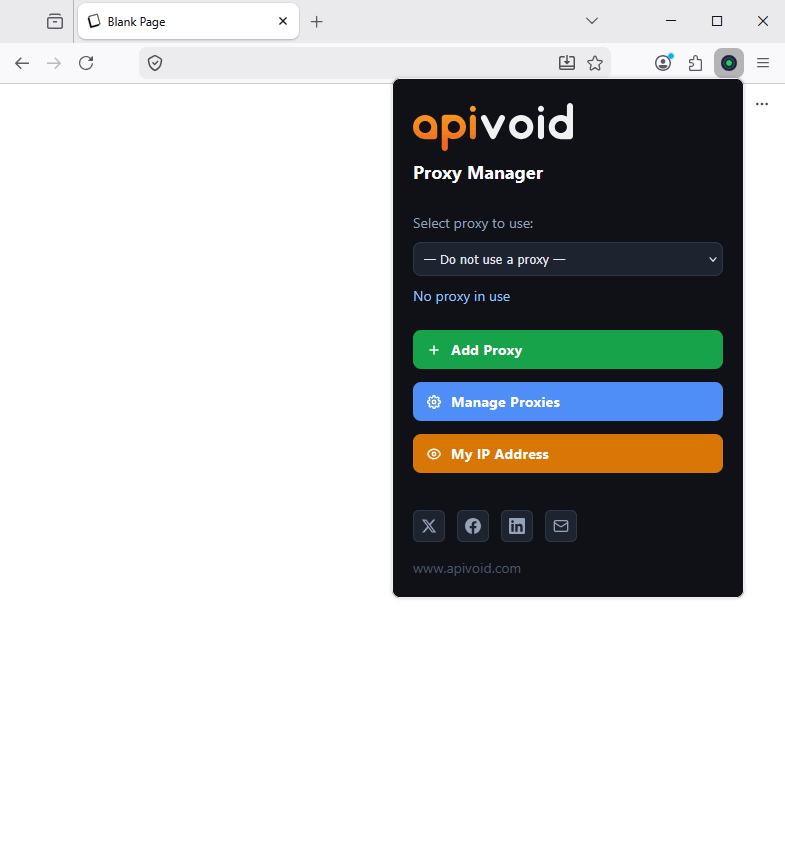
Full Proxy Control
Chrome and Firefox only let you set a single proxy and offer no way to organize or switch between them. APIVoid Proxy Manager lets you save as many proxy configurations as you need, switch instantly from the popup, and keep your bypass list and proxies all in one place.
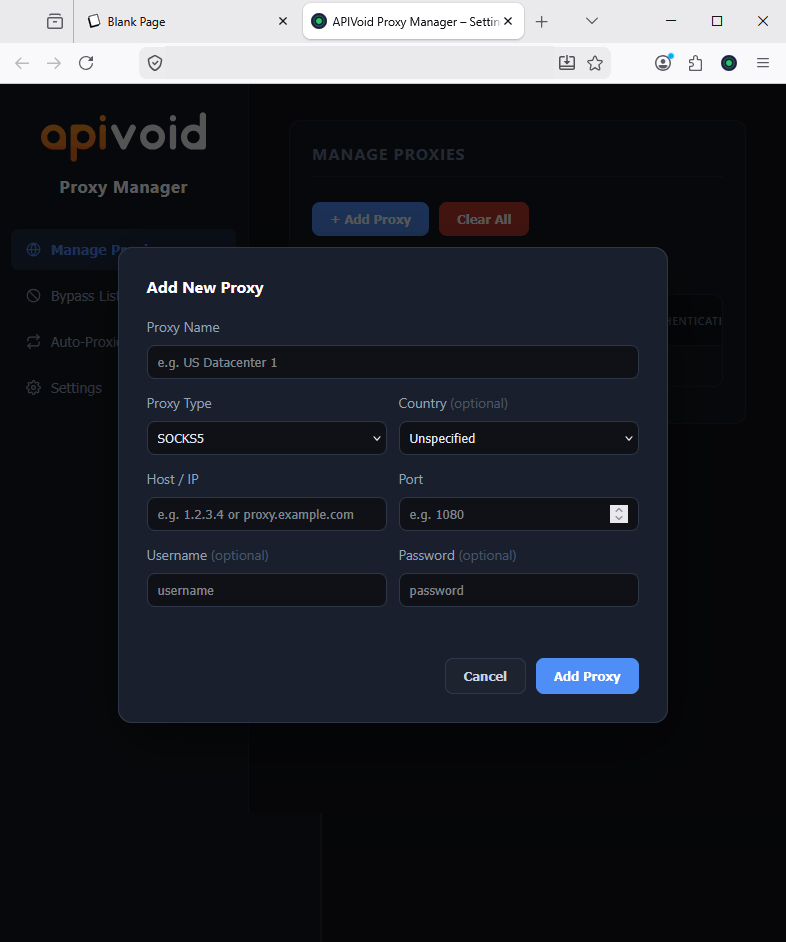
Save hundreds of named proxy configurations and switch between them instantly and at any time from the popup dropdown.
Enter a username and password per proxy. The extension handles authentication challenges automatically.
Supports HTTP, SOCKS4, and SOCKS5 proxies. Each proxy entry stores its type so the right protocol is applied automatically.
The popup shows the active proxy name and the one applied to the browser, so you always know which proxy is in use.
Auto-Proxied Hosts
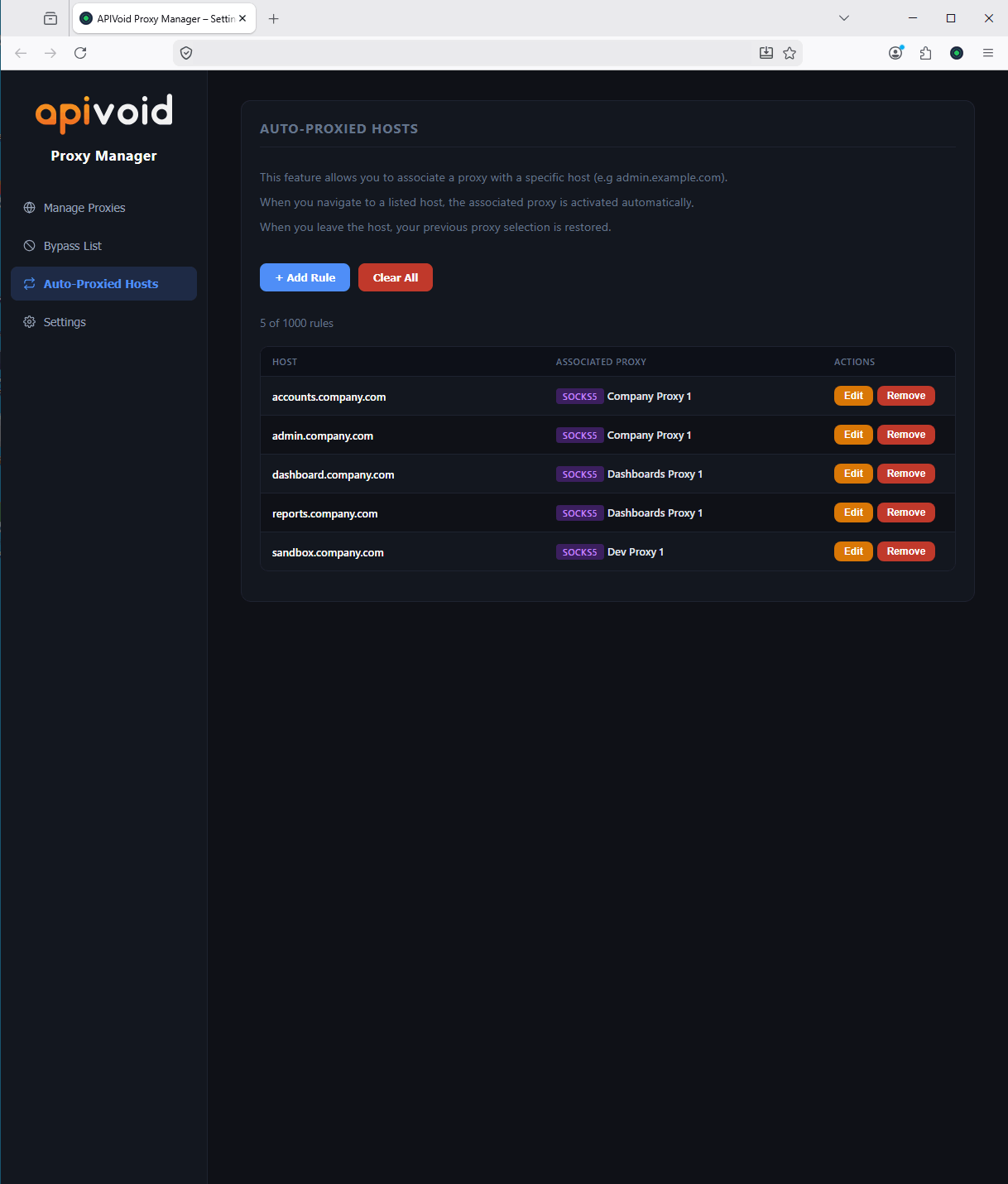
In certain scenarios, access to some hosts requires a specific proxy IP (e.g., IP whitelisting). Auto-Proxied Hosts lets you associate any host with a proxy so the right proxy is activated the moment you navigate there, without any manual switching. When you leave that host, your previous proxy selection is restored automatically.
Associate any hostname or domain with a specific proxy. The extension switches to that proxy automatically on navigation and restores your previous selection when you leave.
Easily manage multiple proxy IPs to satisfy IP whitelist requirements across different dashboards and services, without reconfiguring your environment each time.
A rule for a domain like example.com automatically covers all its subdomains. If you want to target a subdomain, just enter it as-is, such as admin.example.com.
Before: manually configure and enable the proxy IP in the browser’s network settings before each visit. After: just associate the proxy with that specific host only one time.
Bypass List
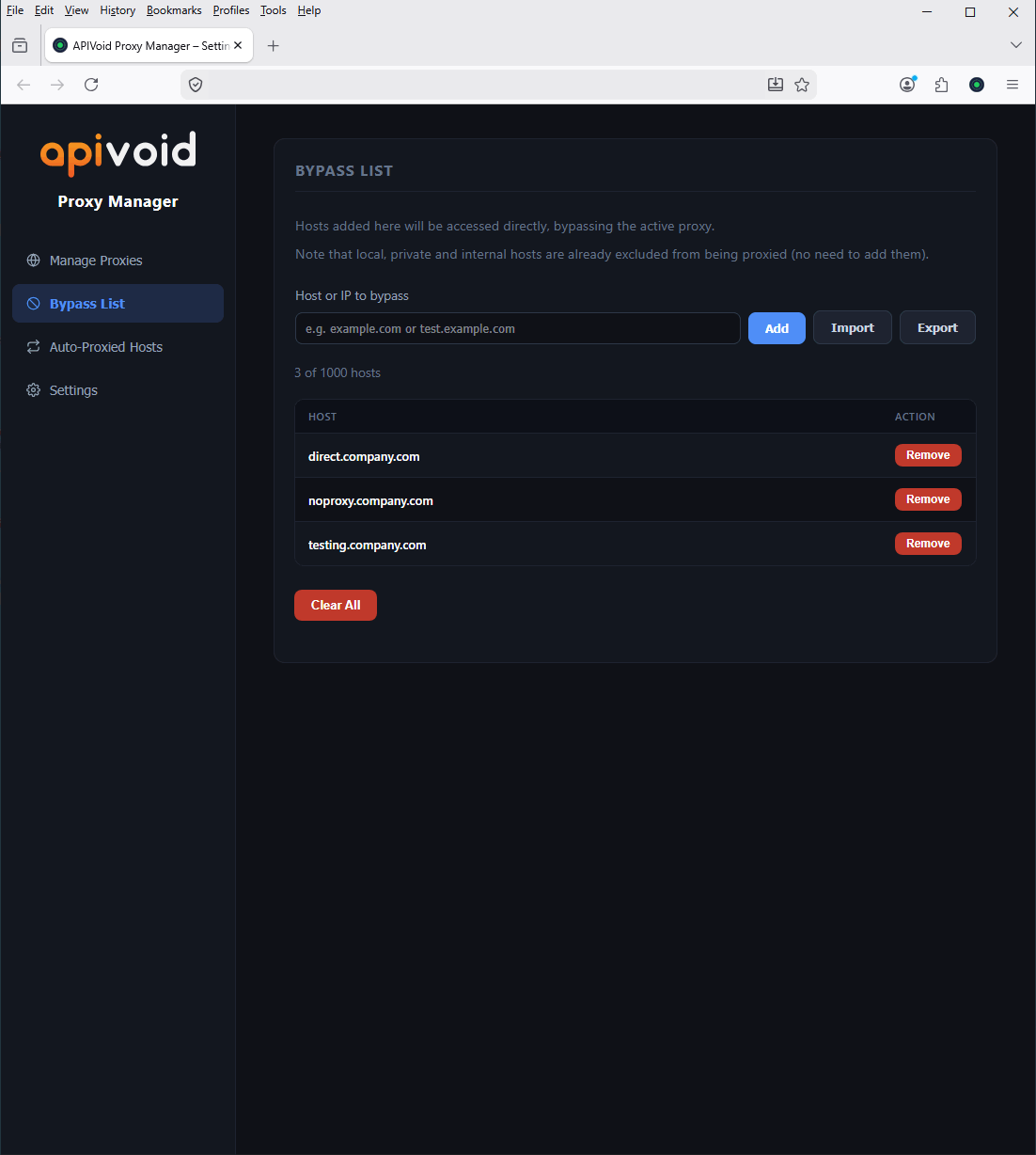
Not all traffic should go through a proxy. The built-in bypass list lets you specify hosts, domains, and IP ranges that should always connect directly. It ships pre-populated with all standard private and reserved IP ranges so your local network always works out of the box.
Add any hostname or domain to bypass the proxy entirely. Subdomains are covered automatically, just add the root domain e.g. example.com.
Enter IP ranges in CIDR notation to exclude entire subnets. The default list covers all RFC-defined private and local ranges.
Import a bypass list from a plain text file with one host per line, or export your current list. Useful for sharing a standard bypass list.
Changes to the bypass list take effect immediately in real-time, without the need to restart the browser or re-selecting the proxy.
PROXY MANAGER FAQ
Find clear answers about how proxy switching works, how authentication is handled, and how to get the most out of APIVoid Proxy Manager.
When you select a proxy from the popup dropdown, the extension configures Chrome's built-in proxy API to route all browser traffic through that proxy server. It applies the proxy type, host, and port you configured, supplies your credentials automatically in response to any authentication challenge, and excludes hosts on your bypass list from being proxied. All subsequent requests use the selected proxy until you switch to another proxy server or select "Do not use a proxy".
There are several practical use cases. You can manage your company's proxy IP addresses and use the Auto-Proxy Rules feature to automatically activate the correct proxy when accessing dashboards, admin panels, or internal tools that require IP whitelisting; no need to manually switch proxies each time. Another common use case is threat analysis: when investigating phishing URLs that only display their content to visitors from a specific country, you can route your traffic through a proxy located in that country to view the phishing page as the intended victim would see it. The extension is also useful for QA and testing, allowing you to easily switch to a custom proxy and verify that geo-restricted content, localized pricing, or region-specific functionality behaves correctly across different locations.
No. This extension is a proxy manager (and switcher) for Chrome and Firefox browsers that allows you to configure and manage your own proxy servers. It does not provide or include any proxy servers or IP addresses. You can use it for various use cases such as IP whitelisting across different dashboards, QA testing of geo-targeted content, or analyzing geo-restricted phishing pages.
Enter only the bare domain without a protocol or path, for example, enter google.com rather than https://www.google.com. The extension automatically expands the entry to also cover www.google.com and all subdomains using a wildcard rule. If you entered the full URL including the protocol, remove it and re-add the entry as a plain hostname. Changes take effect immediately in real-time and apply to all new requests without the need to reload the proxy selection.
When you use a proxy, WebRTC (a technology used for real-time communication like video calls) can bypass the proxy and reveal your real IP address to websites. This extension automatically enables WebRTC leak protection whenever a proxy is active, preventing your real IP from being leaked. When you disconnect from the proxy, normal WebRTC behavior is restored.
Yes. The active proxy selection, all saved proxy profiles, bypass list entries, and credentials are stored in local extension storage and persist across browser restarts. When you reopen the browser, the previously selected proxy remains active. You can confirm the current state at any time by opening the extension popup, which always reflects the live proxy status.
HTTP and HTTPS proxies operate at the application layer and are designed specifically for web traffic. They are widely supported and straightforward to configure. SOCKS5 is a lower-level protocol that can proxy any type of TCP or UDP traffic, not just HTTP, and does not modify or inspect the data passing through it. SOCKS5 also supports authentication and is generally preferred when you need broader protocol support or when working with providers that offer SOCKS5 endpoints. SOCKS4 is an older version of SOCKS that does not support authentication or UDP.
Yes. After selecting a proxy, click the "View my IP address" link in the extension popup, which opens our what is my IP address tool. If the proxy is working correctly, the IP address shown will be that of the proxy server rather than your real IP. If you have added a domain to your bypass list, that domain should show your real IP instead, confirming the bypass rule is applied correctly.
Open the Settings tab in the extension settings page and use the Export button under Backup & Restore to save all your proxy profiles and bypass list to a JSON file. You can then import that file on any other Chrome installation using the Import button. The import dialog lets you choose between merging the imported data with your existing configuration or performing a clean import that replaces everything. This makes it straightforward to move your setup between machines or browsers.
Auto-Proxied Hosts lets you associate a specific proxy with a hostname so the extension switches to that proxy automatically whenever you navigate to that host, and restores your previous proxy when you leave. It is useful when certain sites or tools only allow access from specific IP addresses, such as internal dashboards, client portals, or services tied to a datacenter IP. Instead of remembering to switch proxies manually before visiting those hosts, the extension handles it for you transparently on every visit.
The Bypass List is a passive safety net, hosts added there always connect directly regardless of which proxy is active. It is best used for local network addresses, internal tools, or any host that should never be proxied under any circumstance. Auto-Proxied Hosts is an active routing feature, it associates a host with a specific proxy and switches to it automatically on navigation. Use the Bypass List when you want a host to always bypass every proxy, and use Auto-Proxied Hosts when a host needs to go through a particular proxy rather than whichever one is currently selected.
On Firefox, the extension requires the Run in Private Windows permission to be able to configure the browser proxy settings. Without it, proxy switching will fail silently or show an error in the popup. To enable it, open about:addons in Firefox, find APIVoid Proxy Manager, click on it, and under Run in Private Windows select Allow. Once enabled, the extension will work correctly. For more details on this Firefox permission see the Mozilla support page on extensions and private browsing.
The extension only affects traffic inside the Chrome browser. It uses Chrome's built-in proxy API, which applies the proxy configuration to browser requests only. Other applications running on your computer, such as email clients, terminal connections, or other browsers, are not affected.
No. All proxy switching logic, credential storage, and bypass list management run entirely inside your browser using local extension storage. The extension does not collect, transmit, or log any browsing data, proxy credentials, visited URLs, or personal information.
Create your account, activate your free trial and make your first API call. No credit card and no commitment required.
Get started now